
Contents 10 sections · 5 subsections▼
- What a small business needs to keep its emails out of spam
- Why emails go to spam: the causes I have seen
- What Gmail, Yahoo and Outlook.com require
- SPF, DKIM and DMARC in plain English
- What the law says about your subscriber list
- One domain’s path to DMARC “reject”
- How to check it yourself, in a few minutes
- What to do tomorrow morning, in an order that breaks nothing
- Frequently asked questions
- Can I send my newsletter from my Gmail address?
- Do I need DMARC if I send few emails?
- Can I send offers to other businesses without their consent?
- What do I do if my emails stop arriving after I set up DMARC?
- Do Brevo or Mailchimp handle the technical side on their own?
- About the author
When a business’s emails go to spam, the first three things to check are: whether the domain has SPF, DKIM and DMARC records, whether the emails go out from an address the sending platform cannot authenticate (such as a Gmail address), and how many recipients mark them as spam. The first two are fixed in your settings; the third comes down to your subscriber list.
If you do email marketing for your business (offers or a newsletter), you have probably heard “I never got anything”… and then, two days later, “oh, it was in my spam folder!”. By then the offer had expired, of course. Since 2024, Gmail, Yahoo and Outlook.com have written clear rules for people who send a lot of email, and some of them apply to you even if you send very little. Below you will find what each provider asks for, what the law says about your subscriber list, and the Gmail test you can run yourself in a few minutes.
What a small business needs to keep its emails out of spam
You need an address on your business domain, SPF and DKIM set up for every service that sends on your behalf, one DMARC record for the domain, and people who actually asked for your emails. Offers and newsletters also need an easy, one-click way to unsubscribe.
Separate two kinds of email from the start, because providers treat them differently. Marketing emails are your offers and your newsletter; transactional emails are invoices and order confirmations. Google states plainly that one-click unsubscribe is required only for marketing and promotional messages, and that transactional messages are excluded from it. Domain authentication matters for both.
A badly built website is an invisible shop. An unauthenticated domain does the same to your emails: your offers are left at the mercy of the spam filter, and nobody sees them. I have written about the website side in what a properly built website means.
Why emails go to spam: the causes I have seen
The four causes I have come across are a sender set to a Gmail address, website emails left unauthenticated, two SPF records on the same domain, and spam complaints. All of them are visible, once you know where to look.
Emails sent from a Gmail address through a platform. I recently saw automated emails sent through an email platform from an @gmail.com address, and they kept going to spam. The reason: the platform cannot sign on behalf of gmail.com, so it sent the emails with the sender rewritten to a domain of its own, and the DMARC check failed. Mailchimp says it directly in its documentation: addresses from public email services like Gmail and Yahoo cannot be authenticated. Once the sender became an address on the business domain, authenticated in the platform, the emails showed up as delivered and opened within seconds.
Website emails may take a different route from your newsletter. Your contact form or your online shop orders may go out from your hosting server, separately from your newsletter platform. If you only authenticated the platform, that route can stay uncovered (and it is the very route your order confirmations take). Find out which route each type of your emails takes.
Two SPF records on the same domain. This happens when you add a new platform and someone pastes a second SPF line next to the old one. The SPF standard allows only one per domain, and with two, the check returns an error. In practice, you have also broken what used to work. The fix is to merge the lines into one.
A list without consent, and complaints. When you send to people who never wanted your emails, some of them click “Report spam”. Google wants complaints to stay below 0.3%, which means fewer than 3 for every 1,000 emails. That is very little!
What Gmail, Yahoo and Outlook.com require
Their rules cover emails sent to the accounts they host (personal Gmail, Yahoo Mail, Outlook.com), and a few requirements apply to you however little you send. Google points out that its rules do not apply to emails sent to business accounts on Google Workspace. Yahoo applies them to all domains hosted by Yahoo Mail, and Microsoft talks about Outlook.com accounts.
| Gmail | Yahoo | Outlook.com | |
|---|---|---|---|
| For every sender | SPF or DKIM, complaints below 0.3%, an encrypted (TLS) connection, valid DNS records for the sending server | SPF or DKIM, complaints below 0.3% | recommends SPF, DKIM and DMARC; valid reverse DNS for the server; an unsubscribe option that is easy to find |
| Who counts as a bulk sender | anyone sending close to 5,000 emails or more a day to personal Gmail accounts | Yahoo does not publish a threshold; it speaks of “a significant volume” | more than 5,000 emails a day to Outlook.com accounts |
| What bulk senders must also do | SPF and DKIM, DMARC (which can be set to “none”), the sender domain aligned with the one verified by SPF or DKIM, one-click unsubscribe for marketing, complaints normally below 0.1% | SPF and DKIM, DMARC at least at “none” and passing, one-click unsubscribe honoured within 2 days | SPF, DKIM and DMARC passing |
| Since | 1 February 2024, with stricter enforcement from November 2025 | February 2024 | 5 May 2025 |
| What happens otherwise | emails may be rejected or sent to spam | emails may be sent to spam or rejected | first the junk folder, then, if the problem remains, rejection |
A detail almost everyone misses: at Gmail, bulk sender status is permanent. Google writes in its FAQ that a sender who meets the criteria even once is permanently considered a bulk sender. So a small business with a big list that sends a single Black Friday campaign to close to 5,000 Gmail addresses in one day can fall into this category and stay there, with all its requirements.
Even if you never get there, Google recommends SPF, DKIM and DMARC to everyone. I would set them up anyway, before the very first offer goes out.
SPF, DKIM and DMARC in plain English
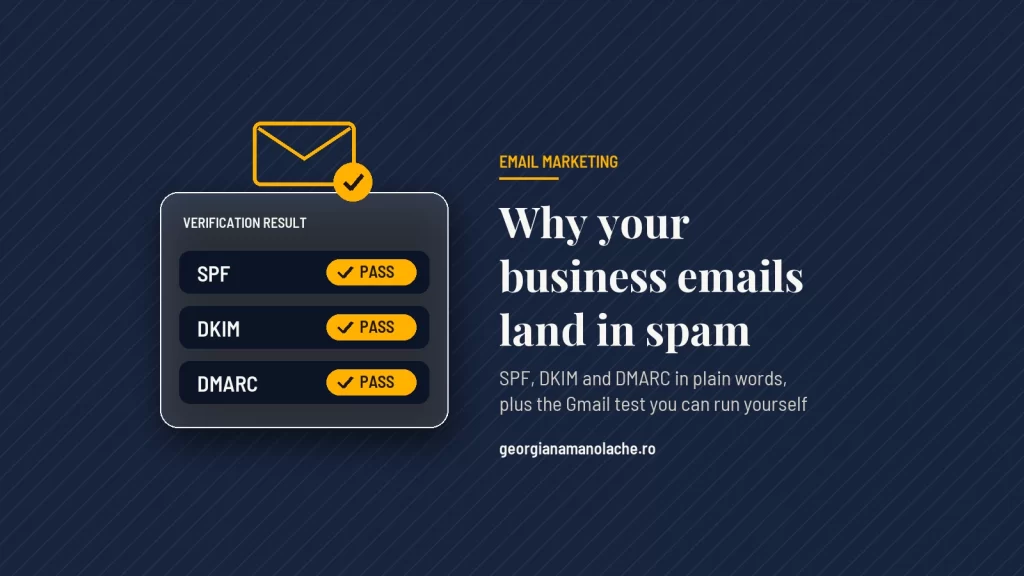
They are lines of text in your domain’s DNS zone (at the company you bought the domain from, or the one that hosts your website) that say who is allowed to send on your behalf and what should happen to emails that only pretend to come from you.
| Record | What it does, in short | What happens if it is missing |
|---|---|---|
| SPF | the list of servers allowed to send from your domain | the receiving server has no way of knowing whether the email comes from you |
| DKIM | a signature on every email, which anyone receiving it can check | nobody can prove the email left you unchanged |
| DMARC | your rule for emails that fail the checks, plus the address where you get reports | you get no reports, and anyone who wants to send in your name has an easier time |
Your email platform shows you what to enter, and you paste it into the DNS zone. With Mailchimp, for example, manual authentication means two CNAME records, plus one TXT record for DMARC.
I have also run into a reporting trap first-hand. DMARC can send you reports about who sends emails on behalf of your domain. If the address where you ask for the reports is on a different domain from yours, a Gmail address for example, the standard requires an authorisation placed on that address’s own domain, and without it your request is ignored. You wait for reports and get nothing: no error, no explanation. Put the report address on your own domain.
If you want to know what you have right now, the free security check tells you whether your domain has SPF and DMARC and whether DMARC is set to monitoring only. The report reaches you by email, after you confirm the website is yours.
What the law says about your subscriber list
In Romania, Law 506/2004 (the national law that transposes the EU ePrivacy Directive 2002/58/EC) bans commercial emails sent without the recipient’s prior express consent, with one exception: customers whose address you got during a sale, for similar products or services, as long as you always give them a simple, free way to opt out. I am not a lawyer, so I am telling you what the law says; for your specific case, ask a lawyer or the Romanian data protection authority (ANSPDCP).
What Article 12 says, one paragraph at a time (my translation from Romanian):
- Paragraph (1): commercial communications by electronic mail are prohibited “unless the subscriber or user concerned has given their prior express consent to receive such communications”.
- Paragraph (2): if you got the address directly from a customer, during a sale, you may send them offers for similar products or services, provided you give them a “simple and free” way to opt out, both when you collect the address and in every email.
- Paragraph (3): in all cases, the email must not hide who sends it and must include a valid address where the person can ask for the emails to stop.
- Paragraph (4): paragraphs (1) and (3) also apply to businesses.
The last paragraph matters to anyone who sells to other businesses. A purchased list of business addresses “for prospecting” does not exempt you from consent, because consent is required even when the recipient is a company. And if you rely on consent, the GDPR requires you to be able to prove you got it (the European guidelines on consent say the burden of proof is on you). Keep a record, for every subscriber, of when and how they gave their consent.
One domain’s path to DMARC “reject”
DMARC has three levels: “none” (you only observe), “quarantine” (emails that fail go to spam) and “reject” (the receiver is asked to refuse them). You move up slowly, reading the reports at every step. Here is what the path looked like on a domain I followed closely for about three months.
| Stage | What happened |
|---|---|
| at the start | DMARC at “none”; the report address was on Gmail, so nothing arrived, and it was moved to the domain itself |
| first reading of the reports | by then the policy had already been moved to “quarantine”; out of 92 emails, 1 failed, a forwarded email whose signature had broken |
| the next two months | two readings in a row, zero failed emails |
| at the end | moved to “reject” |
The reports came only from Google, so a forgotten sender, seen only by Microsoft or Yahoo, would have been missing from them. And at “reject”, a forwarded email whose signature breaks can be refused outright, without even reaching spam. So start with “none”, read the reports for a month or two, fix what you find, and only then move up.
How to check it yourself, in a few minutes
Send one email to a Gmail address from every route your emails take, and look at it. Each route (your newsletter platform, your website form, the program you write in every day) has its own settings, so check each one separately.
The quick test, on a computer, following the Gmail help page:
- Open the email in Gmail.
- Click the down arrow below the sender’s name.
- If you see “Mailed by” with a domain and “Signed by” with your domain, the email is authenticated.
- If you see a question mark next to the sender’s name, the email is not authenticated, and that route needs fixing.
The full test, to see DMARC as well:
- In the email, next to “Reply”, click “More”, then “Show original” (Google’s steps).
- Click “Copy to clipboard”.
- Paste the text into the free Messageheader tool in the Google Admin Toolbox, which reads the header and shows you the results. Google says the header contains the results for SPF, DKIM and DMARC, and that your emails should pass all three checks.
If you send often, also use Google Postmaster Tools, which shows you, among other things, your spam complaint rate. You verify your domain with a DNS record, and with few emails a day the data may be missing, as Google itself says. So don’t be alarmed by an empty dashboard.
What to do tomorrow morning, in an order that breaks nothing
Start with SPF and DKIM for every service that sends on your behalf, and only then move on to DMARC.
- List the services that send on your behalf: your newsletter platform, your website (forms, orders) and your invoicing app, if it sends the invoices.
- For each one, look for domain authentication in its settings and add the records it gives you, with all the services gathered into a single SPF record.
- Set DMARC to “none”, with reports sent to an address on your own domain.
- Run the Gmail test on every route.
- After a month or two of clean reports, move up to “quarantine”, then to “reject”.
If someone else runs your website, you can send them this list as it is. Domain settings are part of website maintenance too, which I wrote about in what website maintenance involves. If you are only now setting up your online marketing, start with the practical guide to digital marketing for small businesses. And if you would rather not tackle the settings yourself, the services page shows how I work.
Frequently asked questions
Can I send my newsletter from my Gmail address?
Technically you can, but platforms cannot authenticate a Gmail address (Mailchimp says so directly), so the DMARC check for the sender address has no way of passing. For your business offers, use an address on your own domain, authenticated in your newsletter platform.
Do I need DMARC if I send few emails?
Gmail and Yahoo require DMARC from bulk senders, and Outlook.com requires it from those sending more than 5,000 emails a day. Google still recommends SPF, DKIM and DMARC to everyone. At “none”, DMARC lets emails through just as before and, if you have set a report address, shows you who sends on your behalf.
Can I send offers to other businesses without their consent?
In Romania, Law 506/2004 says in Article 12, paragraph (4), that the prior consent rule also applies to businesses. The exception remains the one for customers whose address you got during a sale, for similar products or services, with the option to opt out in every email. For your specific case, ask a lawyer.
What do I do if my emails stop arriving after I set up DMARC?
Look in the DMARC reports for the sender that fails. If it is a service of yours you forgot about, authenticate it. If it is a forward set up by the recipient, you cannot fix it yourself, but you can see it in the reports and decide how strict the policy should be. Until you sort it out, you can temporarily step back to “quarantine” or “none”.
Do Brevo or Mailchimp handle the technical side on their own?
Only halfway. Mailchimp, for example, shows you the records to add and describes them step by step in its documentation, but they have to be pasted into your domain’s DNS zone, and your subscriber list and their consent remain your responsibility. If you don’t know where your DNS zone is, ask the company you bought the domain from or whoever runs your website.
About the author

Georgiana Manolache, 22 years in marketing and communication. I build the message and the path that bring you customers, not traffic without sales. I apply buyer psychology through a time-tested method, supported by AI tools.
I wrote the book „Tell Them What They Want to Hear” for entrepreneurs who want to be seen, heard, and chosen by the right customers, without pouring money into channels that have no strategy.
Read next
Website maintenance: what I learned from 35 broken things
What actually breaks on a website, from 35 incidents kept in a log.
Read the articleWhat a properly built website means, and why yours may not bring customers
The two invisible causes behind a good-looking site that brings nothing.
Read the articleDigital Marketing for Small Businesses: A 2026 Guide
Where your first marketing budget should go, and in what order.
Read the article